Ambital

Designs and approvals · Work area

Client approvals with versions, compare and a recorded decision

Ambital's approvals put a design, a document, a campaign deliverable or a social post in front of the client for a decision: approve, request changes or decline, recorded against the exact version with their name and the time. Versions never change, two versions compare side by side, comments pin to a spot, and clients can answer from an email link without logging in.

From Pro · £39/monthMore in Work
The client's portal overview: two documents awaiting their approval with Review buttons, the latest status update, the go-live countdown and the gates coming up

What your client sees

One decision, clearly asked

  • The item, every version, and a note saying what to look at: 'the hero and pricing table only'
  • Compare any two versions side by side, or wipe one over the other
  • Pin a comment to the exact spot on an image or PDF page
  • Approve, request changes or decline, with a note required for the last two
  • All of it from an emailed link on a phone, or in the portal

What you control

The record that settles it

  • Who approves, how many must approve, and in which round
  • Versions are immutable: earlier ones keep their decisions
  • Record a yes given on the phone, shown as recorded by you
  • Lock the approved version as the one that shipped
  • Every decision notifies you, in the app and by email

How it works

A recorded yes in four steps

  1. Step 1: Add the item

    A file, a link to a Figma page, a Google Doc or a staging site, or a file from Google Drive. Say what they should approve.

  2. Step 2: Name the approvers

    One person, everyone, or 2 of 3. Add a second round when the director signs off after the day-to-day contact.

  3. Step 3: Send the link

    Each approver gets a personal link by email, or sees it waiting on their portal dashboard. Only the current round is asked.

  4. Step 4: Get the decision

    Approve, request changes or decline, with pins and comments. Upload a new version and the item resets, with the old version's decisions kept.

Inside approvals

What an approval holds

Versions that never change

Each item holds a stack of versions. A new upload supersedes the last and resets the item to pending; earlier versions stay exactly as they were, with their decisions attached, so you can always show which version was approved, by whom, when.

Compare and wipe

Two panes with a version picker on each, the approved version on the left and the latest on the right. Images and PDFs render inline, and the wipe slider lays one over the other so a changed detail jumps out.

Pinned comments

Click anywhere on an image or PDF page and a numbered pin drops with a note. Pins remember the version, page and position, with resolve and reopen, so 'make it bluer' lives on the thing it is about.

Rounds and N of M

Everyone, any one, or 2 of 3 per round. Round 2 is not emailed until round 1 approves. A new version starts again from round 1, or keeps the rounds that already approved. You choose per item.

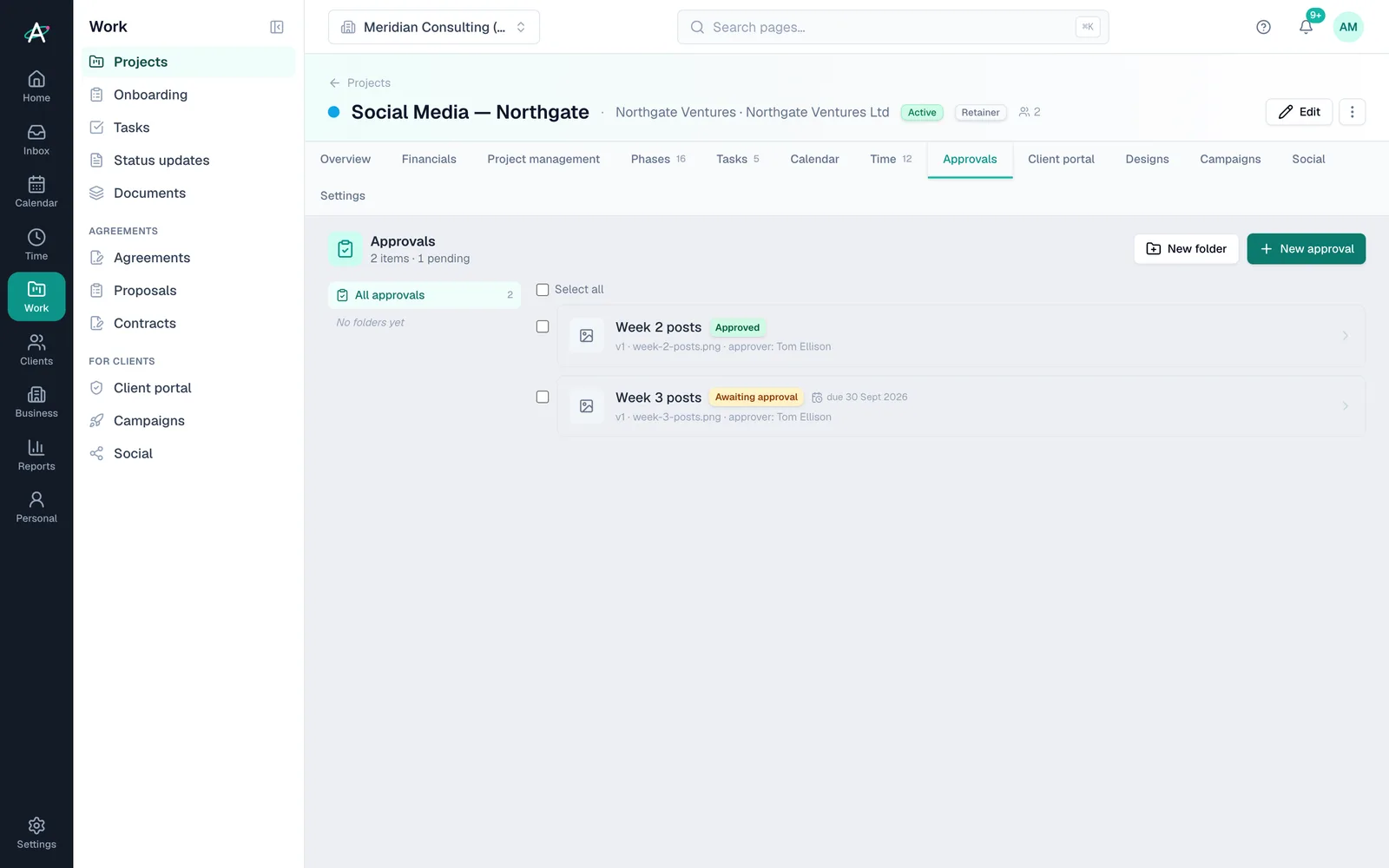
A social retainer's Approvals tab: Week 2 posts approved, Week 3 posts awaiting the client's approver with a due date

Social posts and campaign creative

A social post goes to the client's approver as the post will appear, and cannot be scheduled until they say yes. A campaign deliverable's approved version is locked as the version that shipped.

Campaign deliverables: an announcement email approved at v2 and shipped, a case study email awaiting sign-off, and the client's checklist below

Campaign deliverables

Each deliverable carries its approval and its shipped date. Approve v2 and mark it shipped, and a later v3 stays a draft until you say otherwise.

The Designs section of the client's portal: a logo mark that opens in Figma and a concept board that opens in Canva, filtered by awaiting, changes asked and approved

Design tools linked

Link Canva and Figma designs to the project so the version your client approves is the latest one. Google Drive files are picked from a search, with a warning if an approver cannot open them.

Plans

Which plans include approvals

What each Ambital plan includes for approvals
FeaturePro · £39Business · £59Business Pro · £79Teams · £150
Send work for approval, with versions, compare, pins and commentsIncludedIncludedIncludedIncluded
Choose approvers and how many must approveIncludedIncludedIncludedIncluded
Clients approve from an emailed link, no login, and tick campaign checklistsNot includedIncludedIncludedIncluded
Approvals in the client portal, with 'Approvals waiting' on their dashboardNot includedNot includedIncludedIncluded
Rounds: one group signs off, then the nextNot includedNot includedIncludedIncluded

Compare every feature by plan →

Questions about approvals

Before you send your first approval

Do clients need to log in to approve?
No, on Business and above. Each approver gets a personal link by email that opens the item, its versions, the history and the thread, and lets them approve, request changes or decline. The link is theirs alone and expires after 60 days. Clients who are in the portal see the same thing there.
Can I show which version the client approved?
Yes, always. Versions never change, and each decision is recorded against the version it was given on, with the person's name and the time. For campaign creative, the approved version is also locked as the version that shipped.
What if the client says yes on the phone?
Open the item, choose them under 'Record an answer for', and record it. It counts as their answer in their round, and the history shows it was recorded by you.
What can be approved?
Files such as PDFs, images and documents, links such as a Figma page, a Google Doc or a staging site, files from Google Drive, campaign deliverables and social posts. Canva and Figma designs link to the project from Pro.
Which plan includes approvals?
Sending work for approval is included on Pro and above. Clients answering from an emailed link is on Business and above, the client portal on Business Pro and above, and approvals in rounds on Business Pro and above.

What you are looking at

  1. The client opens their portal on the Warehouse System Rollout: at risk, go-live in 15 working days.
  2. Waiting for you: two documents, the pick-screen flow and the cutover runbook, each awaiting their approval with a Review button and a due date.
  3. Below, the latest status update, and on the right the gates coming up: UAT sign-off and the Site A go-live.
  4. The Approvals entry in the portal's menu shows the two open items, so nothing waits unseen.

Turn 'did they ever OK this?' into a record

Ambital is in private beta. Apply to test and you'll get in first, with free months at launch for committed testers.

14 days free on Business Pro · No card required · Built in the UK