Logging time and timesheets
Where time goes, why it matters, and how to make it painless.
Time is the raw material for most of Ambital's numbers: retainer burn, fixed-fee margin, time & materials billing and the cost of your internal work all come from logged time. The good news is that logging it is quick, and the app meets you halfway.
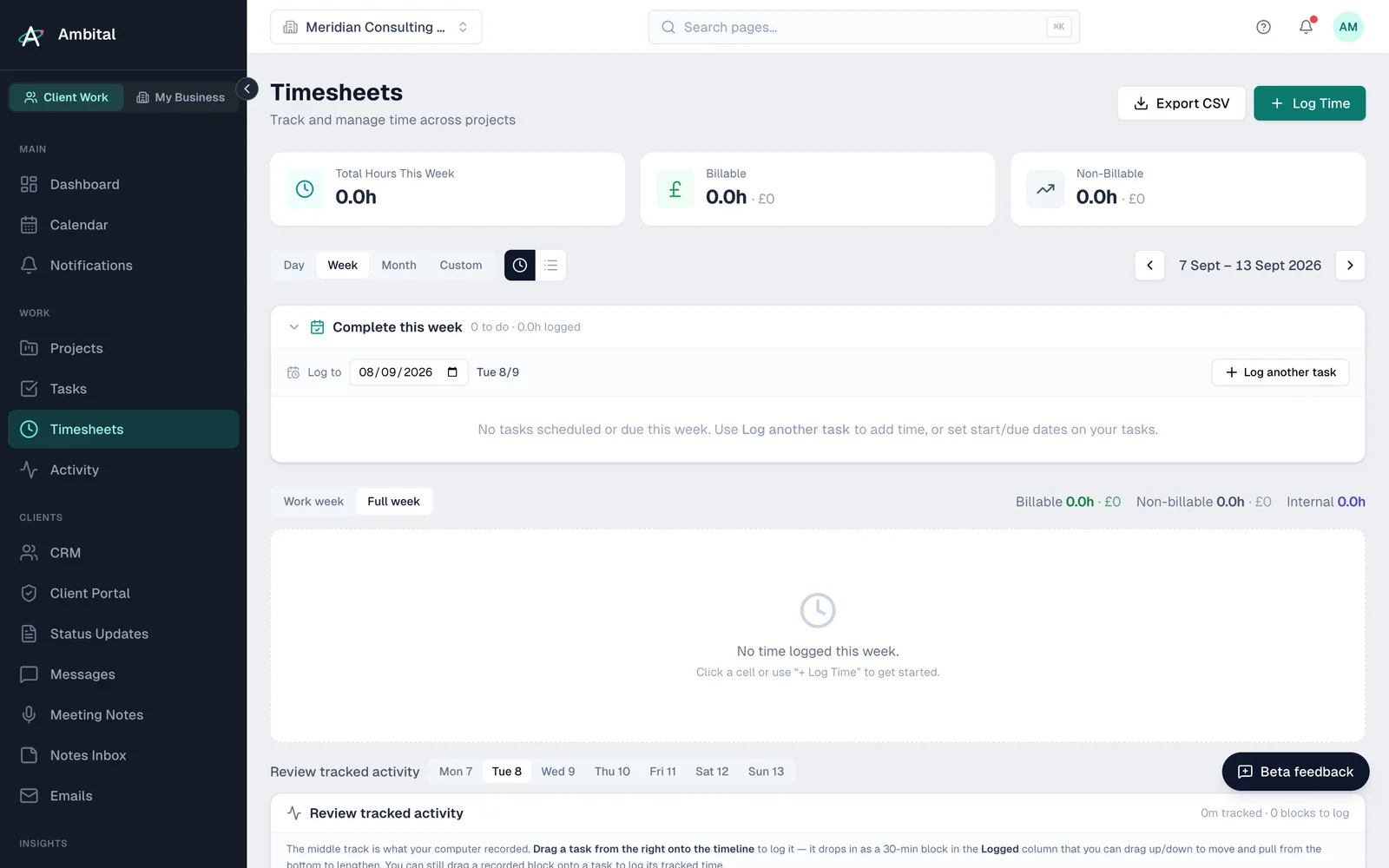
The Timesheets page
Timesheets (the Time icon on the rail) shows your logged time by Day, Week, Month or Quarter. The week view is the workhorse: your projects and tasks down the side, the days across the top, and you fill in the hours.
To log time, pick what the time was for and enter the hours against the day. The Log Time dialog splits your world into headers: Client (client-project work, including pro-bono), Business (your internal projects, including the built-in Business project), New business (pipeline deals) and Personal. Entries can carry a note — future-you, writing the invoice, will thank present-you for one line about what the time was.
Time off
Time off is its own switch at the top of the Log Time dialog, next to the headers — it applies whatever header you're on, because a day off isn't client, business or personal work. Switch it on, pick the kind (annual leave, sick leave, bank holiday, parental leave, unpaid leave or other), then a date or a From / To range: Ambital logs one entry per working day (weekends are skipped) at your daily hours, so a fortnight's holiday is one form, not ten. Choosing Bank holiday offers the upcoming bank holidays for your region (set under Billable Capacity). Time off completes the day on your timesheet but is deliberately kept out of your work-hour numbers — actuals, reports and utilisation don't count it.
Personal time
The Personal header logs time against tasks from your Personal workspace (Pro plan and above), for when you want your own day to read as a whole. It's always non-billable and never touches a project or client report. If you don't have a task for what you did, add one right there in the dialog — it lands in your Personal workspace and is selected straight away.
Time flows into money
Where the hours end up depends on the project's billing model:
- Retainer — hours burn the period's allowance, and the retainer statement shows usage against it.
- Fixed price — hours burn against the agreed fee, so the Financials tab shows real margin, not hoped-for margin.
- Time & materials — hours become billable amounts at the project's rates, ready to pull into an invoice.
- Internal projects — hours count as overhead, so you can see what your own business actually costs you in time.
This is why time is worth logging even when the client isn't paying by the hour — without it, budgets and margins are guesses.
Logging from elsewhere
You don't have to live in the timesheet. You can log time from a task's detail panel while you're working it, and My Schedule shows your week — meetings and planned work together — which makes filling in the gaps easier.
My Schedule lives under Calendar → My schedule. Drag anything out of the Unscheduled queue onto a day to plan it; narrow the queue by project, by type (client work, internal business or personal) or by who it's assigned to, and pick up unclaimed work with the Assign to… control on the card. Dropping a task on a day outside its own start and due dates is allowed — you'll be asked whether to move the dates or leave them alone and just plan the hours there.
Two integrations can do some of the remembering for you:
- The activity tracker (Business plan and above) records what was on your screen and lets you drag activity blocks straight onto tasks from the timesheet's day timeline.
- The Early integration syncs time you've tracked in the Early app into your timesheets automatically, twice a day.
Tip: little and often beats a heroic Friday reconstruction. Two minutes at the end of each day keeps every project's numbers live all week.
Where this fits
Part of how Ambital runs delivery projects, advisory and coaching retainers and interim and embedded roles. Each page shows how the project is set up, what it looks like, and the integrations that fit.
Last updated 25 September 2026
Still stuck? Raise a ticket from Help & support inside Ambital and we'll reply by email.