Invoices and accounting sync
Track invoices against projects, and connect Xero so the numbers keep themselves.
The Invoices page tracks every invoice across your clients — what's draft, sent, paid and overdue — and each project's Financials tab shows the invoices that belong to it, so "have they paid for phase one?" is always one click away.
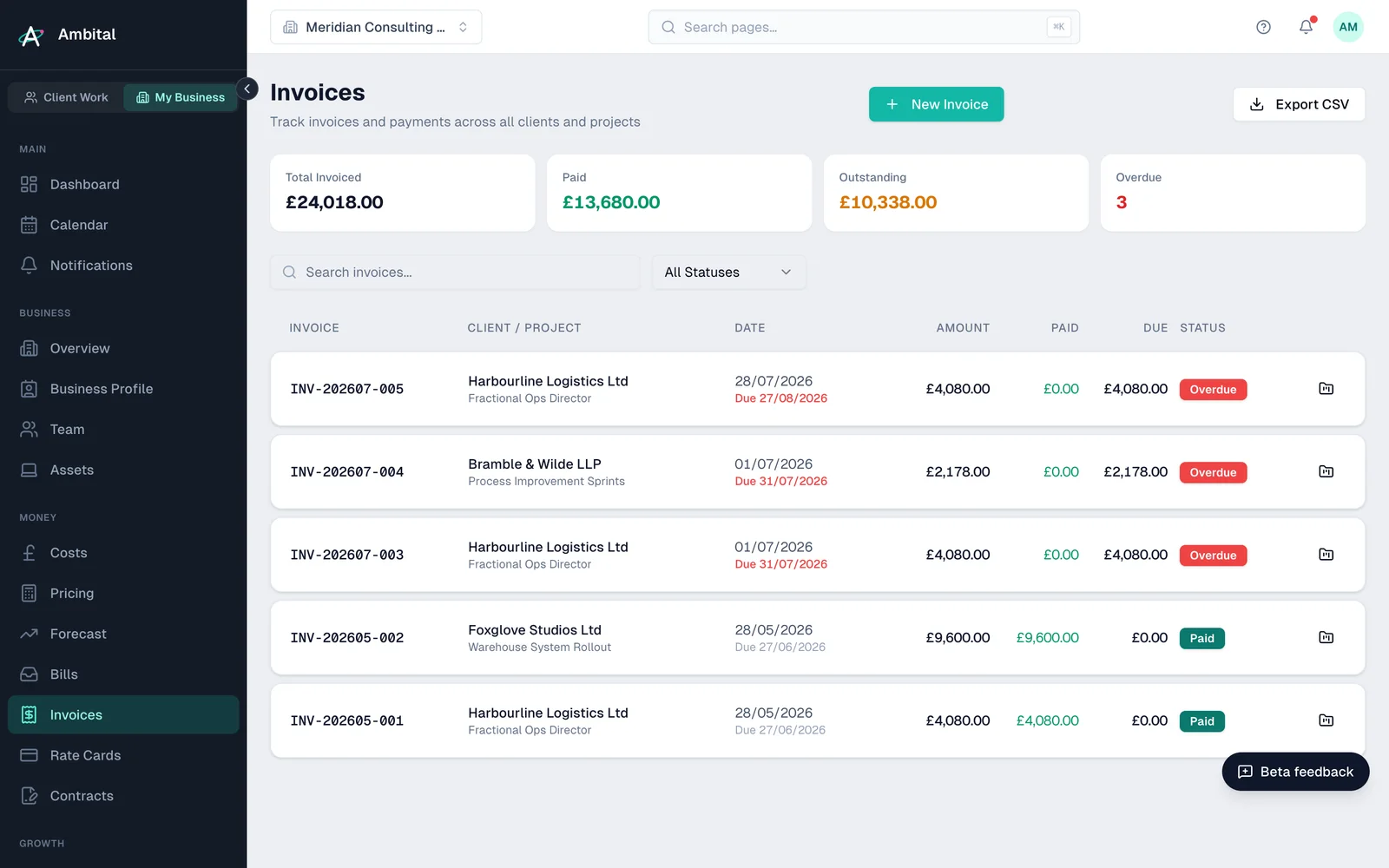
Connecting your accounting system
On the Business plan and above you can connect Xero from Settings → Integrations. Click Connect on the Xero card and approve access in Xero — that's it.
Once connected:
- Invoices sync between Ambital and Xero, so status changes (sent, paid) flow through without re-keying.
- Invoices are matched to projects, feeding each project's revenue and outstanding figures.
- Each invoice deep-links to its Xero counterpart, so drilling into the bookkeeping is one click.
Ambital's invoicing layer is accounting-system-neutral under the hood — Xero is the connector available today, with QuickBooks planned. The full catalogue of what Ambital connects to is in the Integrations overview.
Invoices and the client portal
If a client uses the portal, you can let them see their invoices there: a View link opens the online invoice, and PDF downloads a copy — both scoped so a client only ever sees their own. Handy for the "can you resend that invoice?" email you'll never get again.
Without an accounting connection
You can still record and track invoices in Ambital on any plan (the Free plan caps you at 3 invoices per month) — you just do the bookkeeping side wherever you do it today, without the sync.
Note: connecting Xero is admin-only, and the connection belongs to your organisation — one connection serves all your projects.
Where this fits
Part of how Ambital runs delivery projects, design and branding, interim and embedded roles, audits and assessments and packaged services. Each page shows how the project is set up, what it looks like, and the integrations that fit.
Last updated 8 September 2026
Still stuck? Raise a ticket from Help & support inside Ambital and we'll reply by email.