Integrations overview
Everything Ambital connects to, grouped by what it does for you — each with its own guide.
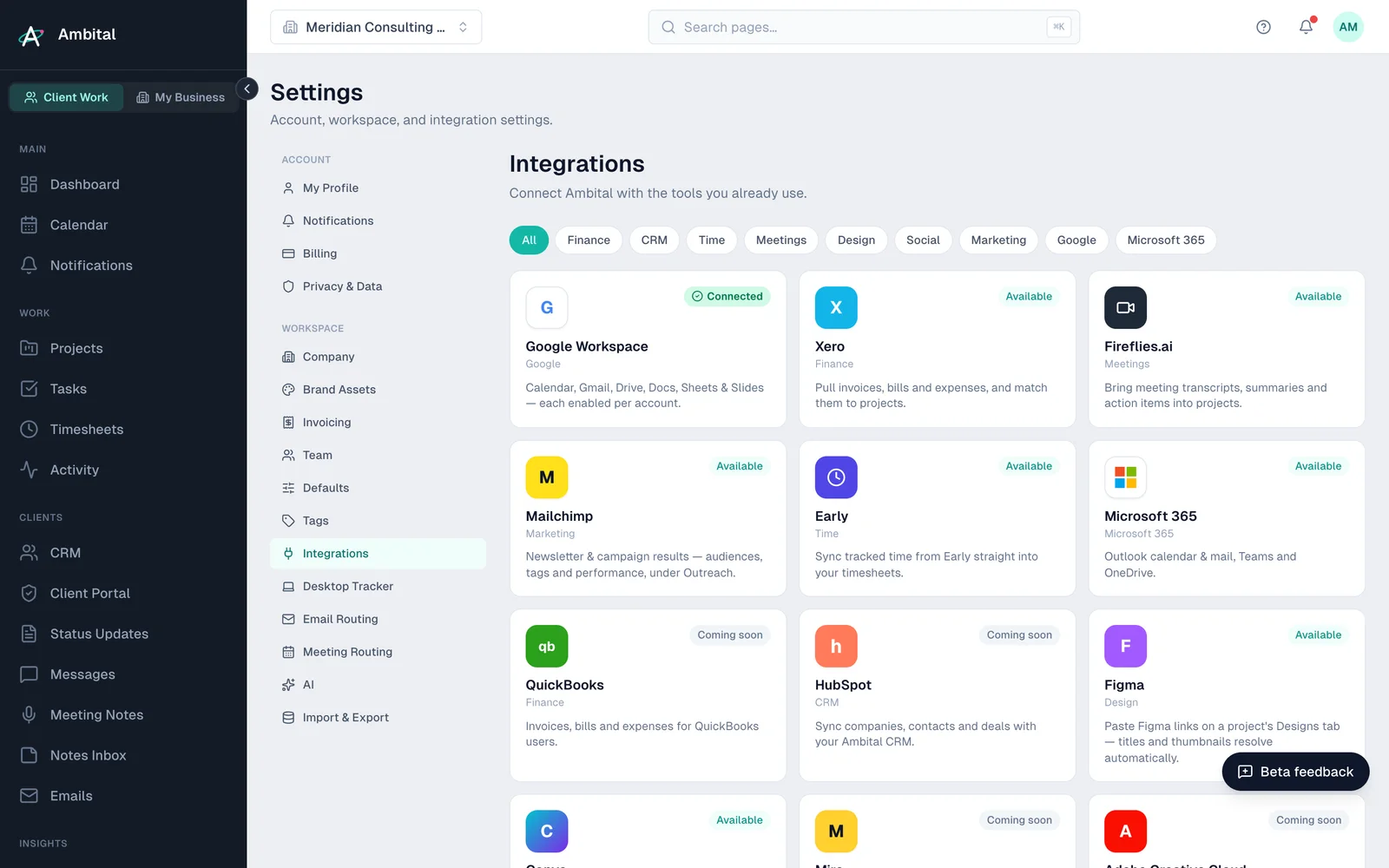
Ambital connects to the tools you already use so that projects, time and money keep themselves up to date. Everything lives in Settings → Integrations — the panel shows what's Connected and what's Available.
Two principles apply across the board:
- Multi-account — you can connect more than one account of the same kind, and a connection can be yours or client-owned (a client's account you manage for them), with any number of projects fed by each connection.
- Admin-only — connecting and disconnecting is for organisation admins, and cards show a lock when your plan doesn't include them (the card says which plan does).
The catalogue
Each integration has its own guide — pick from the sidebar, or jump straight in:
- Email & calendar — Google Workspace and Microsoft 365. Your plan sets one combined cap on connected email accounts across both: 2 Free / 3 Pro / 5 Business / 10 Business Pro.
- Accounting — Xero; QuickBooks coming soon.
- Meetings & notes — meeting notetakers.
- Time & activity — Early and the desktop activity tracker.
- Design — Figma and Canva; Miro and Adobe Creative Cloud coming soon.
- Social — LinkedIn.
- Marketing — Mailchimp.
- Comms — Slack.
- CRM — HubSpot coming soon.
Once connected
Synced email, meetings and transcripts are routed to projects by rules — see Routing emails and meetings. And if a connection ever stops (expired tokens, revoked access), the card shows it and the bell flags it; the fix is almost always Reconnect — see Sync and connection problems.
Whose account is which
Every connection has one owner: Personal (email and calendar outside the business, never synced into client work), My business (your own brand), or a client (an account you run on their behalf). At the top of Settings → Integrations, Whose account is which groups everything by owner with a selector on each row to move it.
The rule does real work: a project only ever sees your own accounts plus its client's — never another client's — in the setup wizard and when choosing social accounts for a post. Client-owned social accounts and their posts appear under Work → Social; your own brand stays under Business → Social media.
Last updated 23 September 2026
Still stuck? Raise a ticket from Help & support inside Ambital and we'll reply by email.