Inviting a client to the portal
Give each client a branded window onto their projects — showing exactly what you choose.
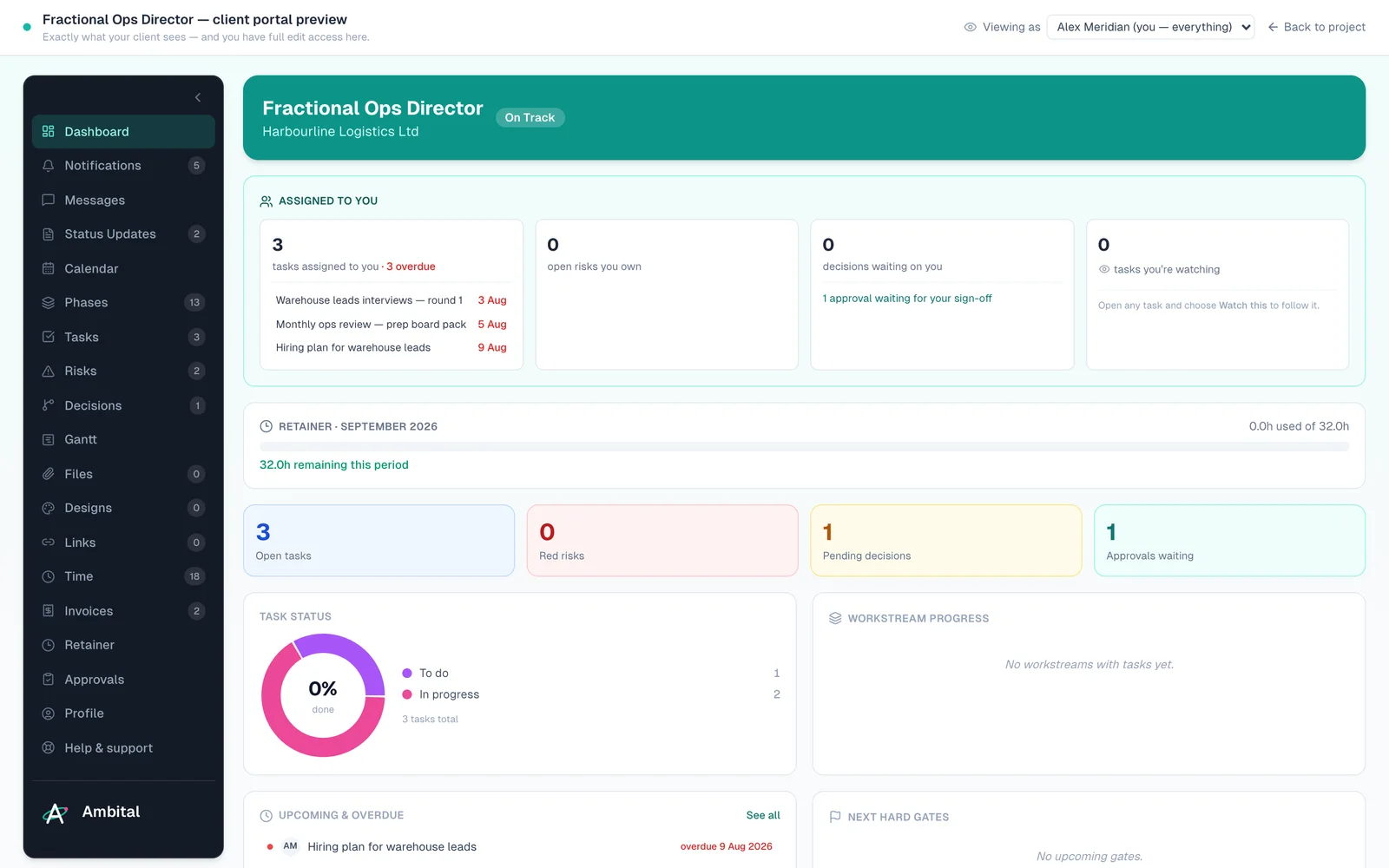
The client portal is a branded space where your client sees their projects — the plan, progress, status updates, files, invoices and messages — without ever seeing your internal workings. You control what's visible, per project and per item.
Before you invite anyone
- Open the project and check its portal visibility: every phase, section and task has a toggle, so decide what level of the plan the client should see (see Phases, sections and tasks).
- Check the project-level portal options — extras like the retainer statement or invoice viewing are off by default and enabled per project.
- Make sure your branding is set (Settings → Brand) — it's your logo they'll see.
Sending the invite
Go to Work → Client portal — it's the management hub for portal access. From there, invite your client contact:
- Choose the client contact and the project(s) they should see.
- Send the invite. They receive an email with a link and a temporary password.
- They sign in with their email and that password, and set their own on first login.
Invites expire after 14 days — if a client sits on one, just send a fresh invite from the same place.
What clients can do
Depending on what you enable, portal users can:
- follow the plan and progress, and read status updates;
- view and download invoices;
- see the retainer statement (hours only);
- message you — client users can only ever message and see their own organisation's people and content;
- approve items you send for approval;
- log or view time entries where you've allowed it.
Portal users are always free — they never count against your plan's seats, and you can invite as many client users as the relationship needs.
Previewing what they'll see
Before inviting anyone, use the portal preview from the project to see the portal exactly as that client will — the quickest way to catch an internal task you forgot to hide.
Note: client logins are completely fenced off from the operator side of Ambital. A client account can only ever reach the portal, and only their own data.
Last updated 8 September 2026
Still stuck? Raise a ticket from Help & support inside Ambital and we'll reply by email.