Phases, sections and tasks
Structure a project so the plan reads the way you'd present it.
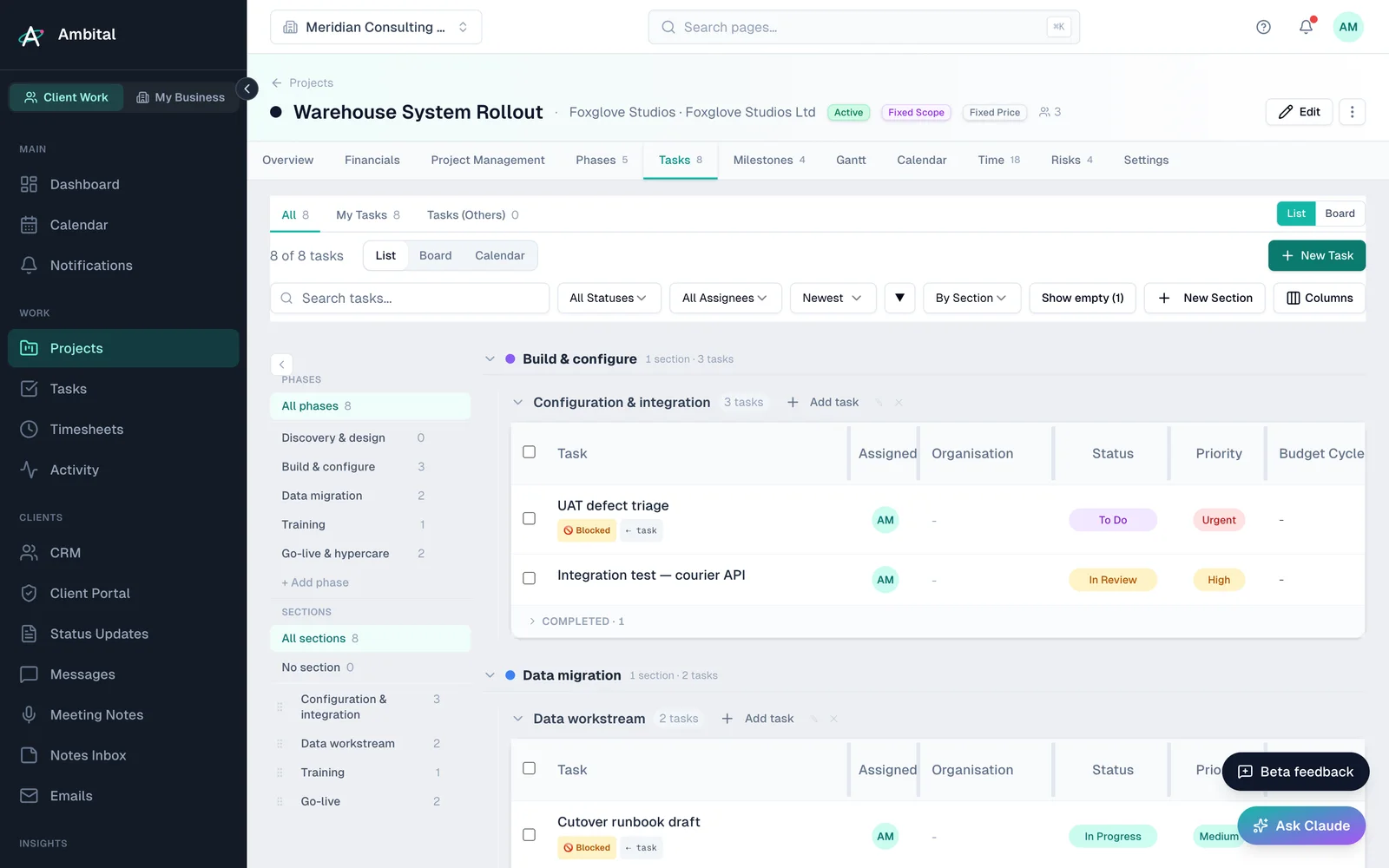
A project's work lives on its Tasks tab, organised in up to three levels:
- Phases — the big stages of the engagement (Discovery, Build, Launch…). Phases drive the Gantt view and the client-facing plan.
- Sections — groupings inside a phase (or a flat list if a project doesn't need phases).
- Tasks — the actual work items, each with a status, assignee, dates and estimates.
Working with tasks
Click Add task in any section to create one; click a task to open its detail panel, where you can set dates, assignee, description, checklist items and log time against it. Task statuses are To do, In progress, Done and Ongoing — Ongoing is for standing work that never really "finishes", like a weekly report.
Work → Tasks collects every task across every client project, so day-to-day you can work from one list instead of opening projects one by one. Your own internal business work lives separately, under Business → Business tasks.
Reordering
Everything drags: reorder tasks within a section, sections within a phase, and phases within the project, straight from the Tasks tab. The order you set here is the order everywhere else — including what clients see in the portal.
Sections are ordered per phase, so the same project can tell a different story in each phase without fighting a single global list.
The Gantt view
The Gantt tab draws phases and tasks on a timeline. It's built from the dates on your phases and tasks, so if the Gantt looks empty, add dates — there's nothing separate to maintain.
Exporting tasks and the Gantt
Both views export, on every plan:
- Tasks → Export CSV (next to the Columns button) downloads the tasks currently in view as a spreadsheet, grouped by phase in project order and sorted by due date within each phase — whatever grouping you have on screen. Sub-tasks sit directly under their parent. It follows your filters, so narrow the list first (a status, an assignee, My Tasks) to export just that slice; the whole project is the default.
- Gantt → Export PDF downloads the chart as a landscape A4 PDF, fitted to the page. It mirrors what you see: collapse a phase or section on screen and it prints as one rolled-up bar; the Week / Month / Quarter zoom sets the axis. Long plans run over several pages with the header repeated.
Choosing what clients see
If the project is shared to the client portal, every phase, section and task has a portal visibility toggle — share the plan at whatever level of detail suits the relationship. Internal working notes can stay internal while the milestone plan is visible. See Inviting a client to the portal.
Tip: start simpler than you think you need. A flat list of tasks is fine for a small project — phases and sections earn their keep on longer engagements and anything client-facing.
Where this fits
Part of how Ambital runs delivery projects, website and product builds, design and branding, marketing campaigns and paid ads management. Each page shows how the project is set up, what it looks like, and the integrations that fit.
Last updated 14 September 2026
Still stuck? Raise a ticket from Help & support inside Ambital and we'll reply by email.