What your clients see
A tour of the portal from the client's side of the glass.
Before you invite a client, it helps to know exactly what's on their side of the glass. This is the portal as your client experiences it — and remember, you can preview any project as the client before sending an invite.
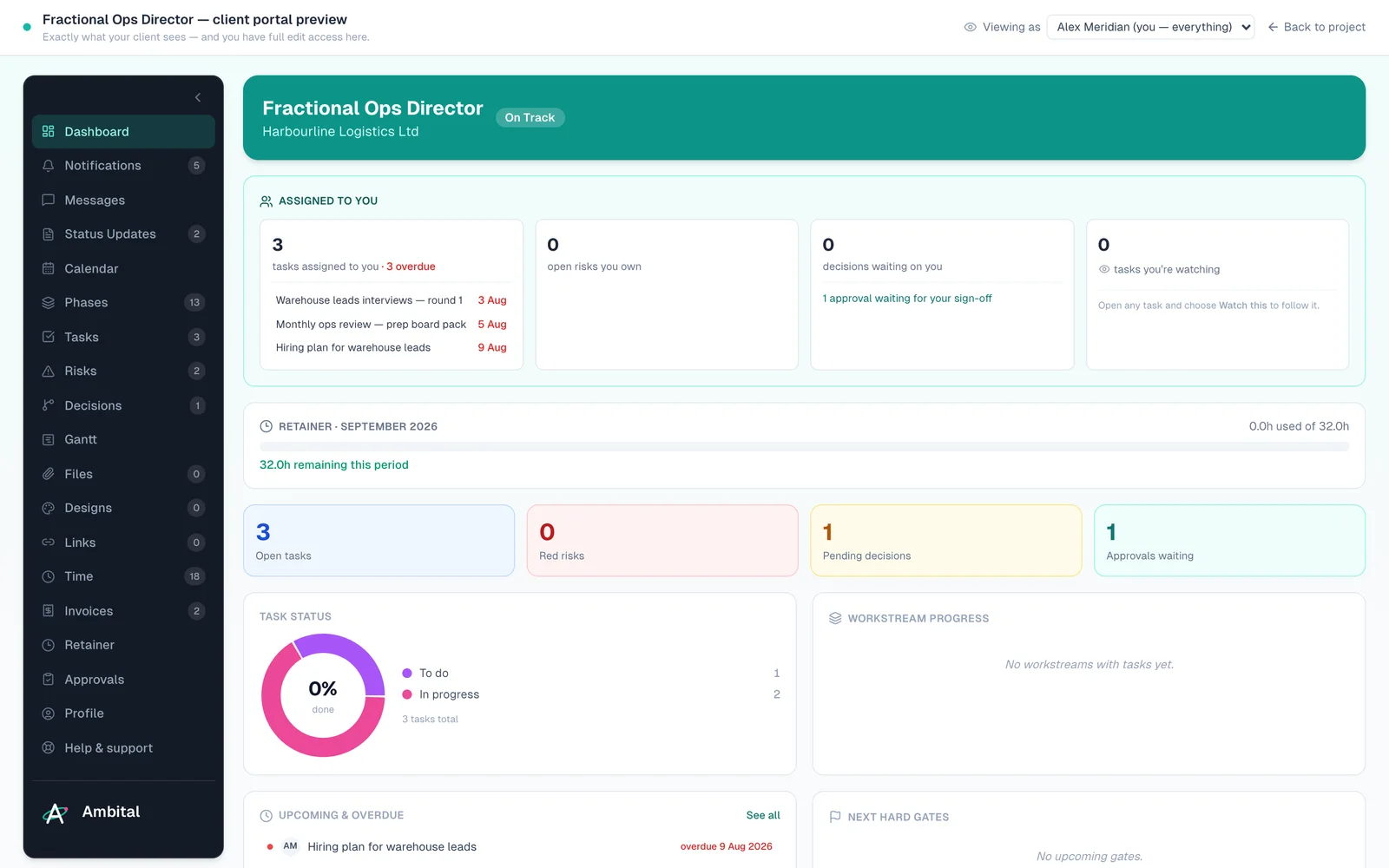
Their dashboard
A client signs in (at their own portal login, with your branding) and lands on a personalised dashboard: their projects, headline progress, anything waiting on them — such as approvals pending — and recent updates. If they have several projects with you, they see all of theirs; never anyone else's.
Inside a project
Each project offers tabs, and you decide which are available per project:
- The plan — phases, sections and tasks, exactly at the level of detail your portal visibility toggles allow. Client-facing countdowns show working days.
- Status updates — the reports you've published to the portal, styled.
- Approvals — sits directly under Decisions in the portal nav with a count of open items; see Approvals. The portal's Notifications inbox has Approvals and Decisions tabs listing every one the person can see, with "Waiting for your sign-off" / "Needs your decision" on the ones that are theirs, and who decided the recent ones.
- Files, links, decisions, Gantt — reference material you've shared. On decisions they can see who's accountable (there can be several decision-makers), the outcome once it's settled (approved, denied, or amends requested), any files and links behind it (you can attach these when you create the decision, or later from the decision itself), and add comments or suggestions; the decision-makers themselves record it in a Your decision block — Approve, Deny or Request amends, with a rationale box — and everyone else with a stake (your team and the other decision-makers) is told by email and in their notifications. Every recorded decision is kept as a Decisions recorded history on the decision — who, which way, when, and their reasoning — in the app and in the portal. Description and context stay yours to edit; a client only records the decision and their reasoning. On your side, the Decisions tab can be searched, filtered by status, phase or decision maker, and grouped by any of those; select several to set a status or add a decision maker to all of them at once, and edits in a decision's panel are kept until you press Save.
- Invoices — view online or download the PDF (their own only).
- Retainer statement — hours in, used and remaining, if you've switched it on. Hours only — never rates.
- Time entries — logged time, where you've allowed it.
- Messages — the conversation channel back to you; see Messaging clients.
Your branding
On Business Pro and Teams the portal wears your look: your logo and brand colour on the header, your logo or name at the foot of the navigation, and your name on the emails they receive from it — set both under Settings → Company. A text "Powered by Ambital" stays in the footer on every plan. Below Business Pro the portal shows Ambital's own look.
If the portal is paused
The portal is part of the Business plan and above. If your organisation drops below that, your clients see a short "portal is paused" page instead of their projects — nothing is deleted, no one is removed, and it reopens the moment you're back on Business. Upgrading from Settings → Billing is all it takes.
What they can never see
The operator side simply doesn't exist for a client login: no costs, margins or rates, no other clients, no pipeline, no internal tasks or notes, nothing you've toggled off. A client account can only ever reach the portal, enforced at every layer — not hidden behind a menu.
Tip: less is more on day one. Share the plan and status updates first; add approvals, invoices and the retainer statement as the relationship needs them. Every extra is per-project and one toggle away.
Where this fits
Part of how Ambital runs advisory and coaching retainers and packaged services. Each page shows how the project is set up, what it looks like, and the integrations that fit.
Last updated 23 September 2026
Still stuck? Raise a ticket from Help & support inside Ambital and we'll reply by email.