Creating a project
Client work, internal work or pro bono, and the billing model that fits how you charge.
Projects are where everything in Ambital comes together — tasks, time, meetings, emails, files and money all hang off a project. Creating one takes a minute; choosing the right type and billing model is the part worth pausing on.
Start a new project
-
Go to Work → Projects and click New Project.
-
Choose what kind of project this is:
- Client project — billable work for a client: retainer, fixed price or time & materials, with invoicing and budgets.
- Non-billable project — nothing is ever invoiced. Use it for your own work (product builds, marketing, ops) or for unbilled client work — pro bono, goodwill, a favour. Time you log still tracks at cost, so you can see what the project really costs you.
-
For a client project, say what it's for — a delivery project, an advisory retainer, an interim or embedded role, a marketing campaign, a website build, a design or branding job, an audit, a packaged service, and so on. They're grouped as Projects, Retainers, Marketing and Services. Ambital uses this to suggest the billing model, the tabs the project shows and its starting phases. If none of the options fit, pick Something else and tell us in a few words; we read those to decide what to add next.
-
Say how the client will sign things off — in the client portal (recommended) or by email. Choose email for a client who'd rather not log in anywhere: approvals go out as emailed links and the portal tab stays off. You can change this later in the project's Settings.
-
Check the suggested phases — rename, reorder or remove them, or add your own. Skip it and the project starts with none.
-
Fill in the overview — name, client, dates and budget. The tab list is pre-ticked with what we recommend for that kind of project; change anything you like, and save.
Non-billable projects skip the "what's it for" questions and go straight to the overview.
Changing your mind later
Everything the wizard set can be changed on the project's Settings → Tabs section: the purpose, how the client signs off, and which tabs are on. Changing the purpose there never rewrites your tabs on its own — use Apply recommended tabs if you want the suggested set.
Pro-bono client work
On a non-billable project the client field is optional. Leave it empty and the project counts as internal overhead. Pick a client and it becomes pro-bono client work — and you choose how to report it with the "Count cost as a loss against this client" toggle (on by default):
- On — the cost of your time, expenses and bills shows as a loss against that client: on the project's Financials tab, in the client list's margin column, and in custom reports. Useful when you want to know what a goodwill engagement is actually costing you.
- Off — the client link is context only (emails, tasks, portal); the cost stays in your internal overhead and never touches the client's margin.
You can change your mind later — the same toggle lives on the project's Financials tab.
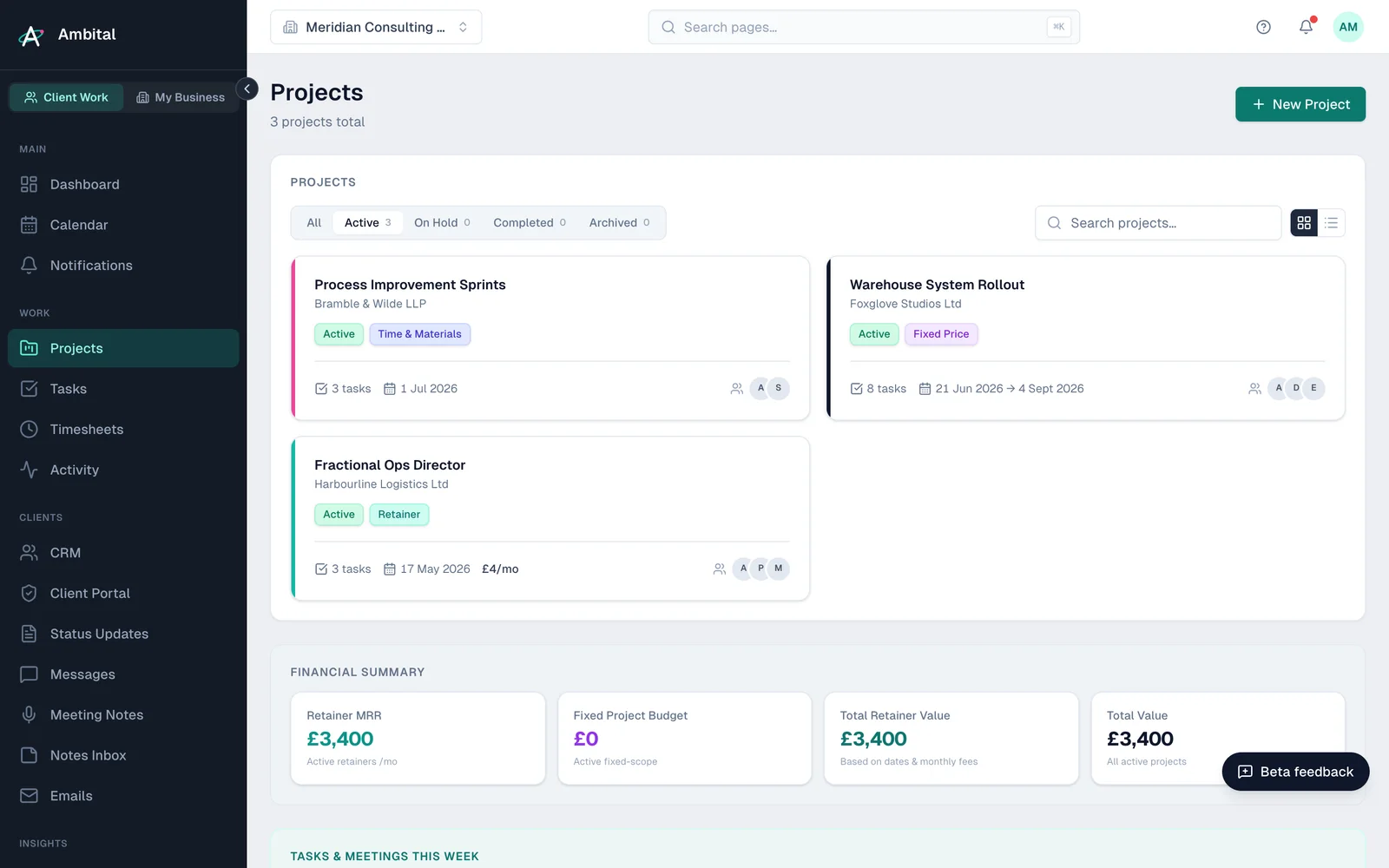
Billing models for client work
The billing model decides how the project's money behaves, so pick the one that matches your agreement:
| Model | How it works |
|---|---|
| Retainer | The client pays a recurring fee for an agreed number of hours. Ambital tracks each period's hours against the allowance, including rollover if you allow it. See Retainers and rollover. |
| Fixed price | An agreed fee for an agreed scope. Time you log burns against the fee so you can see margin as you go. |
| Time & materials | You bill for the hours worked at your rates. Logged time becomes billable amounts ready to invoice. |
You can't freely swap billing models once money is flowing, so if you're unsure, think about how you'll invoice: recurring fee → retainer; one agreed number → fixed; hourly → time & materials.
After it's created
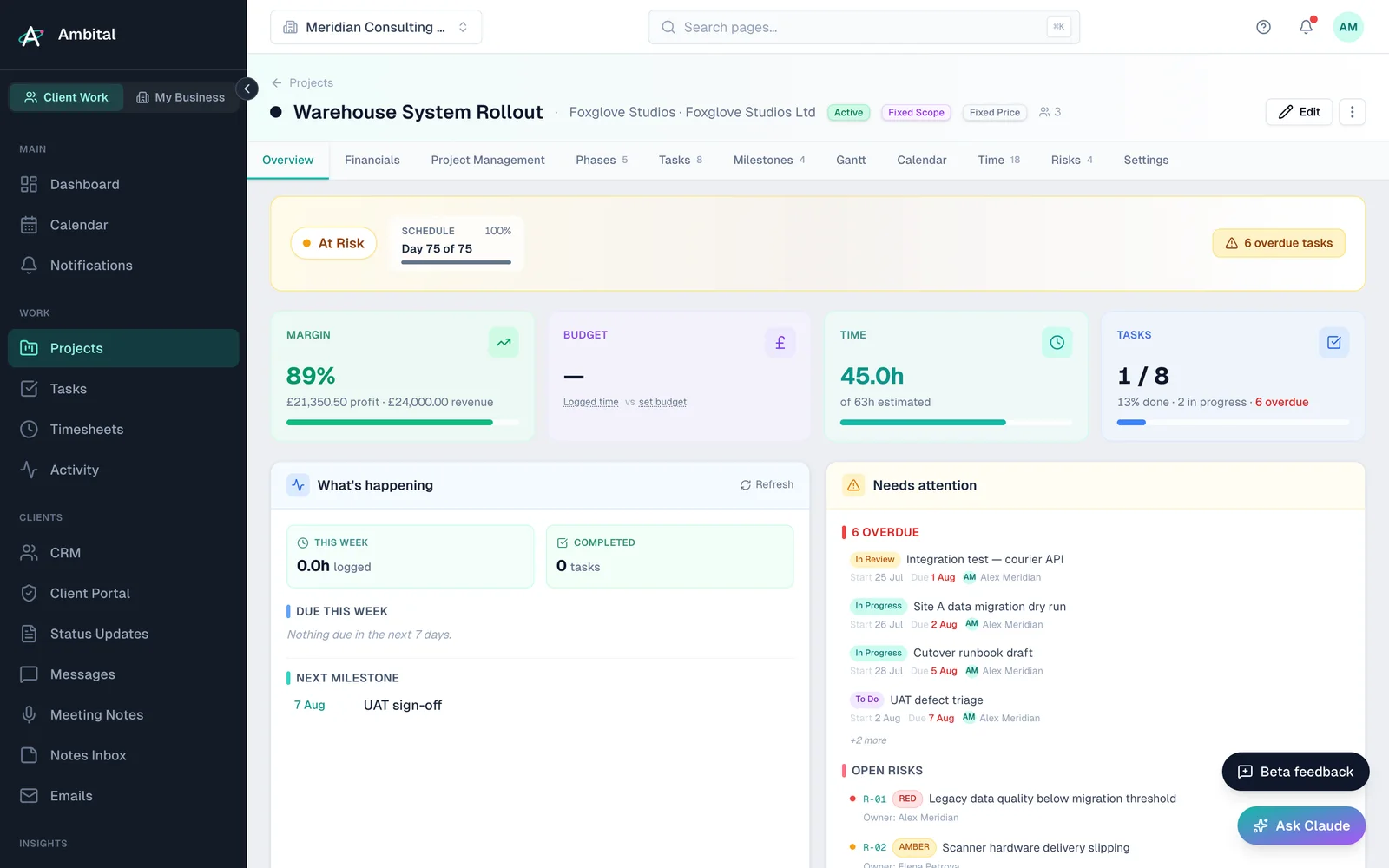
A new project opens on its Overview tab. From there:
- Structure the work under the Tasks tab — see Phases, sections and tasks.
- Set up Financials — budget, rates and (for retainers) the periods.
- Decide what the client should see if you use the portal — see Inviting a client to the portal.
Tip: deadlines and countdowns you share with clients (days to go-live and the like) count working days — weekends are excluded automatically.
Last updated 23 September 2026
Still stuck? Raise a ticket from Help & support inside Ambital and we'll reply by email.