Welcome to Ambital
A five-minute orientation — what lives where, and where to start.
Ambital is the business platform for fractionals, consultants and freelancers: your projects, time, clients, invoicing and client communication in one place. This article is a quick map of the app so everything else in the help centre makes sense.
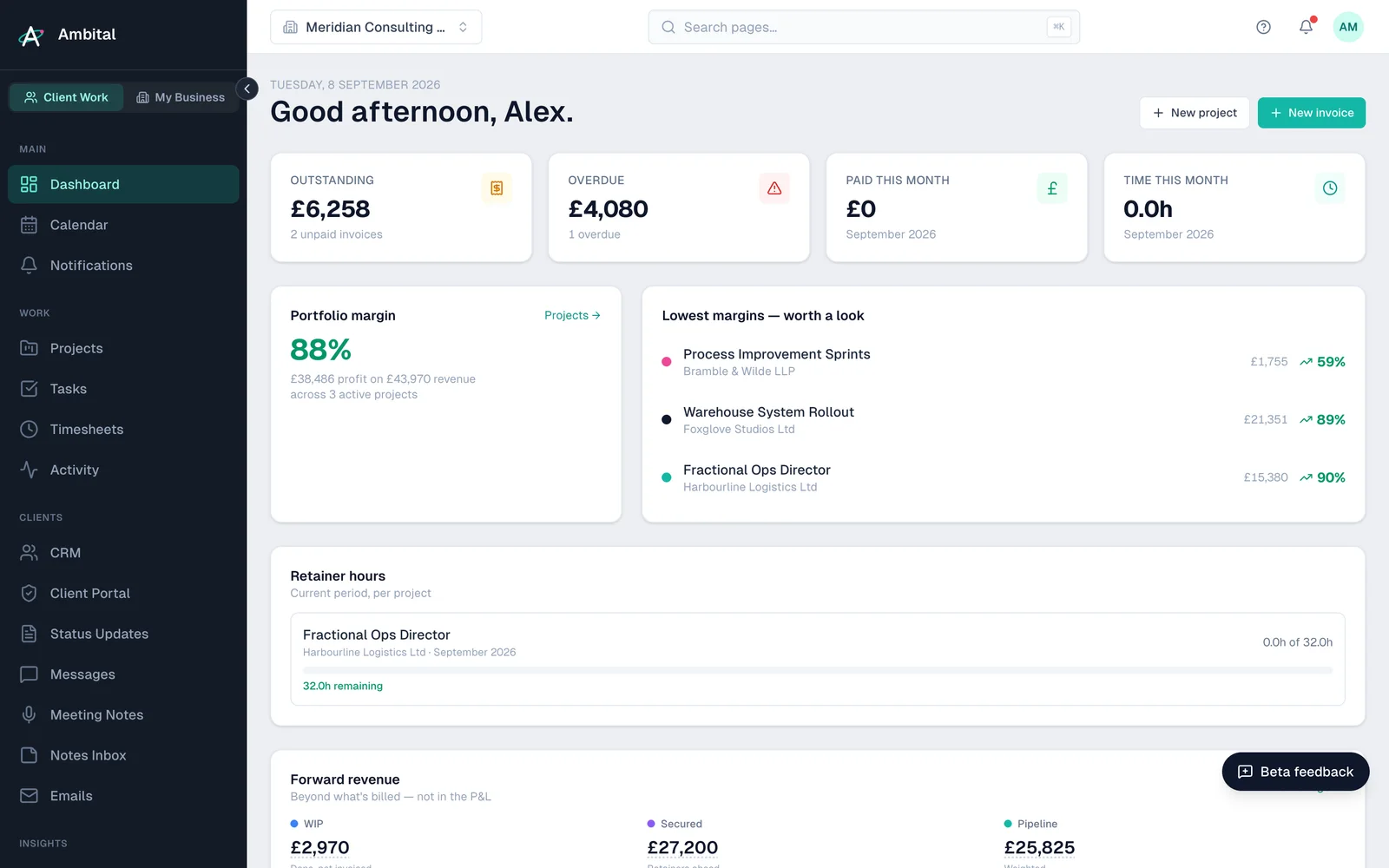
Home
When you log in you land on Home. The switch at the top — Client work / My business / Personal — chooses which view it shows: Client work leads with what needs actioning — this week's meetings, your open and overdue tasks, meeting action items and the notes inbox; My business shows the money picture — invoices outstanding, margins, retainers and your profit and loss; Personal is your own private tasks, notes and calendar. It's built from what you put into the rest of the app, so it gets more useful as you go.
Finding your way
Down the left is a slim rail of areas. Click one and the panel beside it lists that area's pages:
- Home — your dashboard (no panel).
- Inbox — Notifications, Emails, Meeting notes, Notes inbox and Portal messages: everything coming in, whichever client or business matter it's about.
- Calendar — your Calendar and My schedule, where you plan your week by dragging unscheduled work onto a day.
- Time — Timesheets. Time drives budgets, retainer burn and invoicing, so this is worth doing properly. See Logging time.
- Work — delivery across every client: Projects, Tasks, Status updates and Documents, plus the For clients pages — Client portal, Campaigns and Social. See Creating a project.
- Clients — a lightweight CRM: All companies, Contacts and Pipeline, then the list of your clients and prospects. Open a client for their workspace — Overview, Brand, Social, Documents and Invoices.
- Business — running your own company: profile, brand, team, internal projects and business tasks; Money (Invoices, Bills, Costs, Pricing, Forecast, Rate cards); and Growth (New business, Outreach, Services, Campaigns, Social media). See My Business explained.
- Reports — Client work and Business reporting.
- Personal (pink, Pro and above) — a private space just for you: your own tasks, meetings, notes and personal inboxes. See Personal workspace.
- Settings, at the foot of the rail — your profile, organisation, integrations, plan and preferences.
Star any page to pin it: pinned pages sit at the top of every panel, so the handful you use daily are always one click away. Need more room? Hide the panel with the button at its top-right and bring it back from the rail.
The topbar
Along the top you'll find:
- Search (⌘K) — jump to any page, or any client, by name.
- The bell — notifications, grouped by project and category.
- The question mark — contextual help: guides for the page you're on, search across this help centre, and a direct line to support.
- Your avatar — profile, settings, and the guided tour.
Where to start
- Take the guided tour — open your avatar menu and choose Getting started. It walks the app section by section, and you can do it in short bursts; your progress is saved.
- Set up your organisation — name, branding, and your working defaults.
- Create your first real project, or explore with the demo data that came with your account.
Tip: your account starts with demo projects and data so nothing is empty on day one. Delete them whenever you're ready — they're just there to show you around.
If you get stuck
Every page of the app has the ? button in the topbar. If the guides don't answer it, use Contact support — you'll get a ticket reference straight away and a reply by email.
Last updated 25 September 2026
Still stuck? Raise a ticket from Help & support inside Ambital and we'll reply by email.